

Convention card
On StepBridge you often play with changing partners and opponents. A well filled-in convention card is therefore extra important: the other players see at a glance which system you play, and during play you can always look at your opponents' card.
StepBridge uses a fixed card layout. You choose a card from the library of standard cards, or you make your own version of one with your partnership's agreements.
Choosing a card
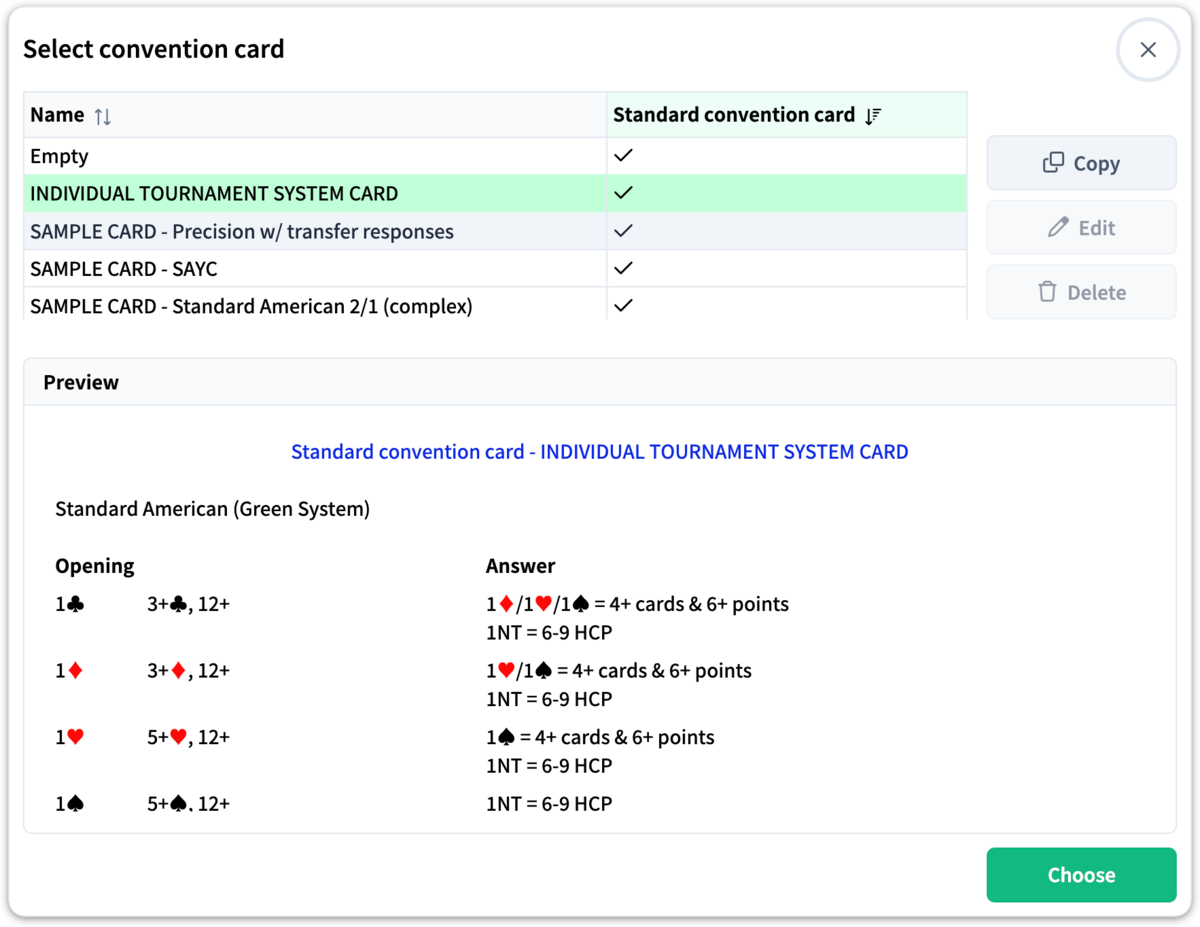
Everything to do with the convention card happens in one window: open the profile menu (the icon with your initials at the top right), click Open convention card and then Show convention cards. You see the list of cards, with a preview of the selected card below the list. Standard cards have a tick in the Standard convention card column.
Choosing a standard card is the basis and is enough for most players; the steps are in the quick start guide. If you play with a regular partner and your agreements differ, make a card of your own.
Adapting a card
You can't edit a standard card directly: Edit is greyed out. You always work in a copy of your own:
Select a base card
In the list, select the standard card that is closest to your agreements.
Click Copy
A new card appears in the list: Copy of …. This is your own card.
Click Edit
The edit screen opens. First give the card a name of its own that you will recognise, then adapt the agreements. Finish with OK.
Click Choose
This makes the new card active.
Do you have slightly different agreements with one partner than with another, for example high-low or low-high signals? Then copy your own card as the basis for the next variant.
Filling in a card
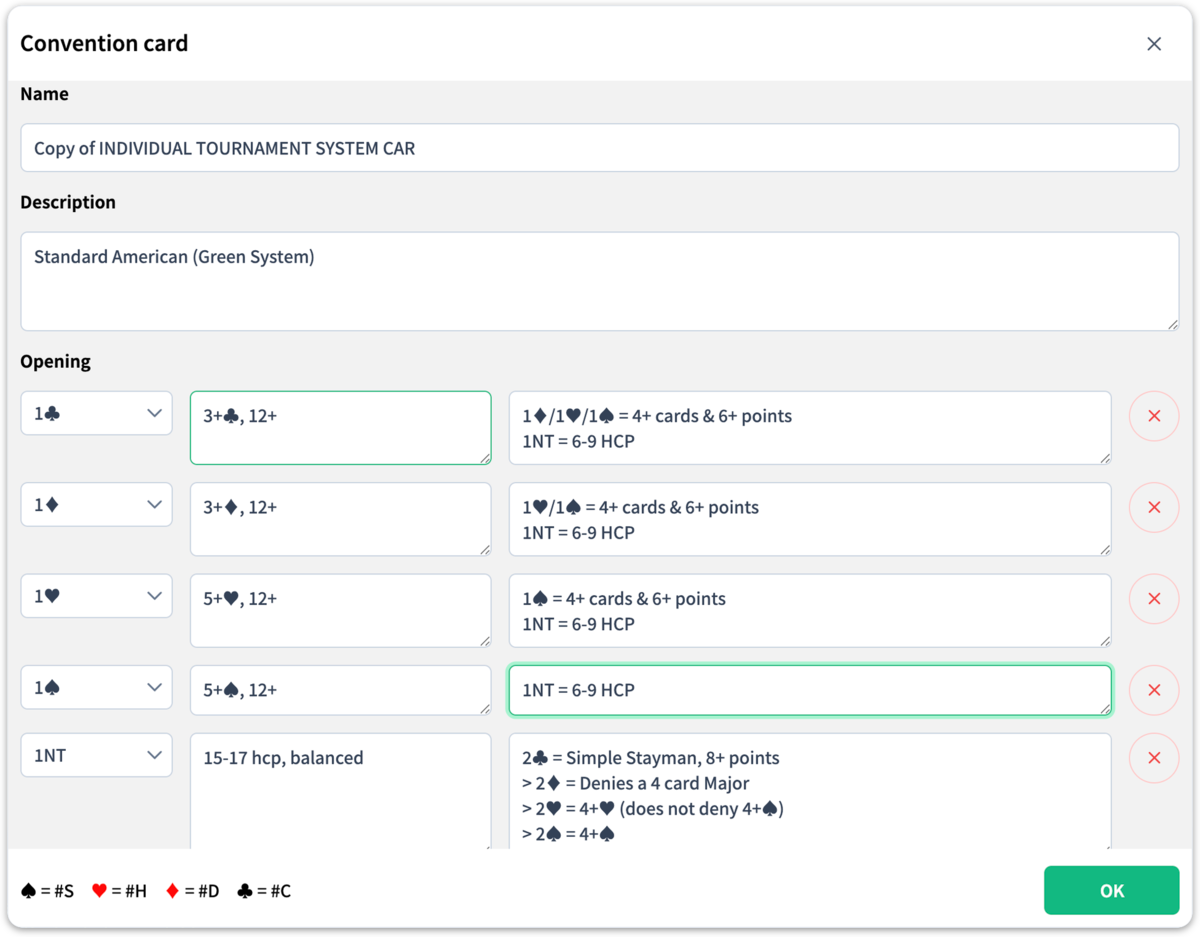
Work through the edit screen from top to bottom. Each line has a drop-down menu for the bid, a description (points and suit length, for example "12-19 pts, 2+ cards") and the responses that go with it. Click the cross after a line to delete it; that way you keep only the agreements you really play.
Start with the openings, from 1♣ upwards, with their responses, and then fill in the other sections, such as overcalls, conventions, leads and signals.
You type suit symbols with a hash and the first letter of the suit: #S becomes ♠, #H becomes ♥, #D becomes ♦ and #C becomes ♣. The key is also shown at the bottom of the edit screen.
Grouping bids
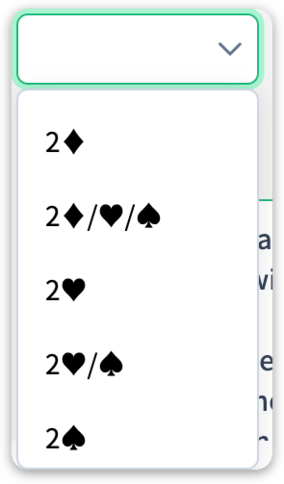
There are five bids at each level: ♣, ♦, ♥, ♠ and NT. Often consecutive bids have the same meaning; think of pre-emptive openings at the three level. You don't have to fill those in one by one: for the bids that don't have a line yet, the drop-down menu also offers groups, such as 2♦/♥/♠ or 2♥/♠. Choose such a group and your description applies to all those bids together; whatever you don't group, you fill in line by line.
The X is the widest group and stands for "any suit": 1X covers 1♣, 1♦, 1♥ and 1♠ in one line. NT always falls outside the X and keeps a line of its own. That's how it is on the standard cards too: 1♥/♠ groups two openings, and 3X means "any suit opening at the three level".
Adding a line
You always add a new bid with the empty drop-down menu at the bottom of the section. As soon as you choose, the line jumps to its place in the bidding order. If you work through the card from top to bottom you won't notice, but if you later add a lower bid, nothing seems to happen while the new line is already at the top. Scroll up to fill in its meaning.
Switching cards
You activate another card in the same window: select the card and click Choose. Your chosen card stays active until you choose another one, so you don't need to set anything again after logging out.