

Contacts
Your contact list holds the players you meet regularly: your regular partner, club members, friends. You can see at a glance who is online and where they are, go straight to their table or send them a private message, and use a code to control who you do and don't want to play with.
Opening the list
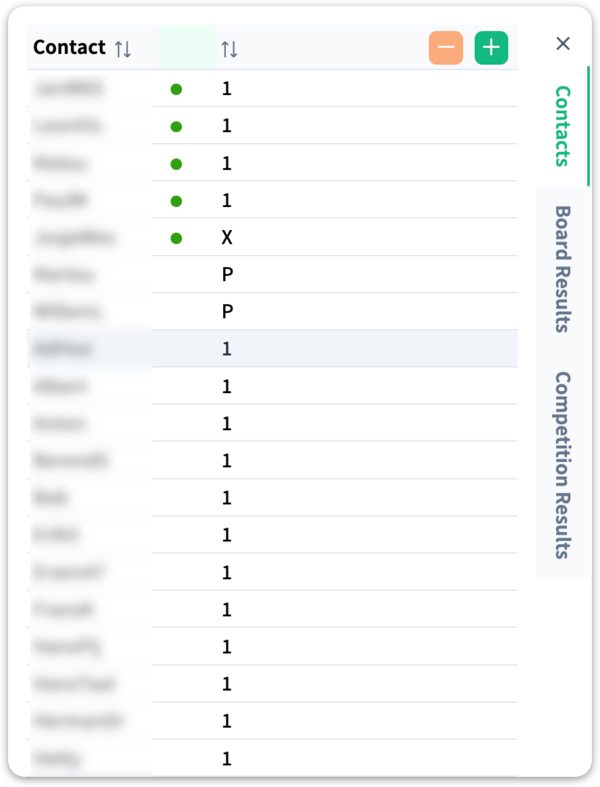
Click the address book icon at the top. The Contacts tab opens on the right.
Players who are online right now are listed first (marked with a green dot), followed by everyone else. Within each group, your partners (code P) come first, then the number codes, and players with code X come last.
Adding a contact
There are two ways to add someone:
- From the list — click the + at the top right of the tab, type the player name and press Enter.
- From the player — right-click a player's name (on a tablet: press and hold the name) and choose Add to Contacts.
In the Add contact window you choose the code and the notifications straight away (see below), then click Add.
To remove someone, select the player and click the − at the top right.
Contact details
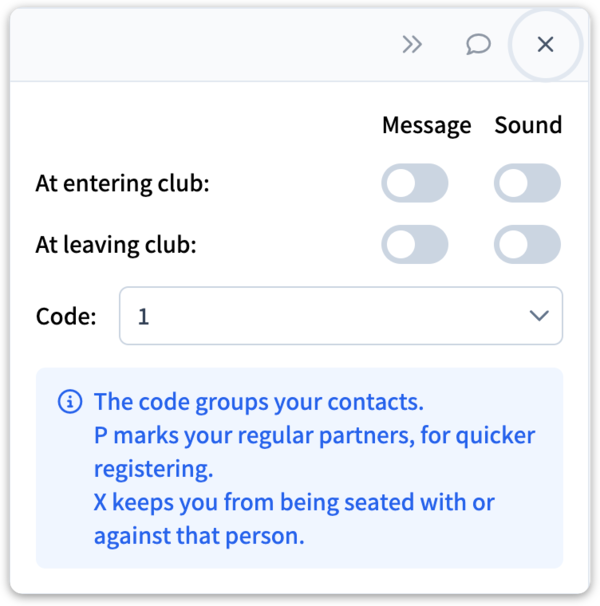
Click a contact in the list. The details panel for that contact appears at the bottom of the tab. If the panel is collapsed, open it with the pencil (or double-click the contact).
At the top is your contact's name. If they are somewhere, the name is followed by an @ and their location: the table, or the room if it's a different one from yours (a tournament, for example). Click the location to go there straight away.
To the right are three buttons:
| Button | What it does |
|---|---|
| Go to your contact's location, just like clicking the location. If your contact is at a table, you join as a spectator; only take a seat once a seat is free and the others are happy for you to join. | |
| Send a private message. | |
| Collapse the panel. The location and private message buttons stay visible; the pencil opens it again. |
You can also go to a contact's location or send a private message by right-clicking a contact in the list; that menu also has Show identity.
Below that you set the notifications and the code for this contact. Any change is saved straight away.
Notifications
The four switches let you choose whether you get a message and/or a sound when this contact enters or leaves the club. Useful for your regular partners; with a long list, only switch it on for a few people, or it soon gets distracting.
Codes
Every contact has a code. You choose it when adding the contact, or later below the switches in the contact details.
| Code | Meaning |
|---|---|
| P — Partner | Your regular partner. When you register for QuickStep or a tournament, your P contacts are suggested below the partner field, so you don't have to type the name. |
| 0 to 9 | Free to use for organising your contacts, for example 1 for favourites and 2 for club members. A new contact gets code 1 by default. These number codes have no other meaning in the program. |
| X — Don't seat | StepBridge no longer seats you with or against this player, in QuickStep and when finding a partner for a tournament. You can give this code to a limited number of players. |