

Playing
Playing together
Playing at one table with friends, family or club members: starting your own table and letting the others join you.
Would you like to play as a foursome, for example with family, friends or club members? Then one of you starts a table of your own and the others join it.
Before you start
- Agree who starts the table. That player becomes the table host.
- Add each other to your contacts. You can then see straight away who is online, and get to the host's table with one click.
- Decide together whether it should count for the competition (see below).
Competition or not
- Competition table — your scores count towards your competition level. All four players must fall within the table's level range.
- Recreational table — doesn't count towards anything. Anyone can play, whatever their level. Handy if your levels are far apart, or if you just want a relaxed game.
Starting the table
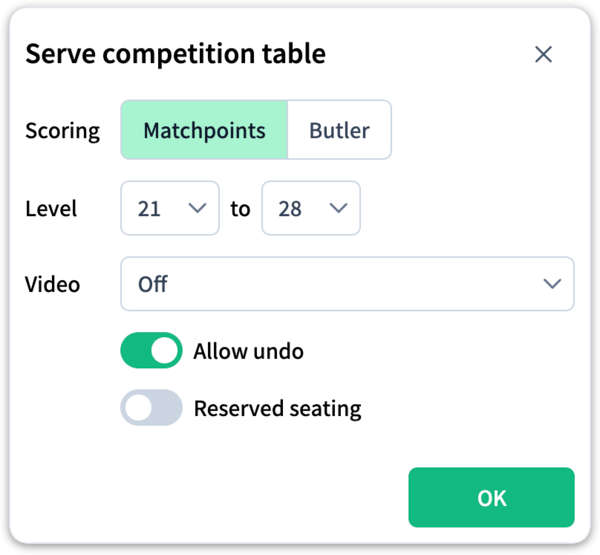
- On the main screen, in the Tables panel, click Start competition table or Start Sabi / recreational table.
- Choose the scoring: Matchpoints or Butler.
- For a competition table: set the level so that all four players fall within it.
- Want only the four of you to be able to sit down? Then switch on Reserved seating (see below).
- Click OK. You are now at your own table, sitting South.
Would you like to see and hear each other? Choose a camera setting under Video.
Joining the table
The other three go to the host's table: in the contacts list, they click the location after the host's name, or .
- Ordinary table — they choose a free seat themselves. Note that other players can then also sit down at your table.
- Reserved seating — they come in as visitors, and the host (already sitting South) seats the others: right-click a player's name and choose North, East or West.
As soon as all four seats are taken, play begins.
At a table with reserved seating, nobody can take a seat themselves; only the host assigns the seats. Others can still come in to watch. To remove an unwanted guest, use Hosting → Remove User. You can switch the reservation on or off later via Hosting → Reserved Seats.