

Playing with video
When you play with video, the players at the table see and hear each other through camera and microphone, so you bring the atmosphere of a real bridge table into your home. Video is possible at a table you start yourself, in teams matches, and in tournaments and club sessions. At your own table and in teams matches you choose it yourself; in tournaments and club sessions the organiser decides beforehand whether video is used.
Switching video on
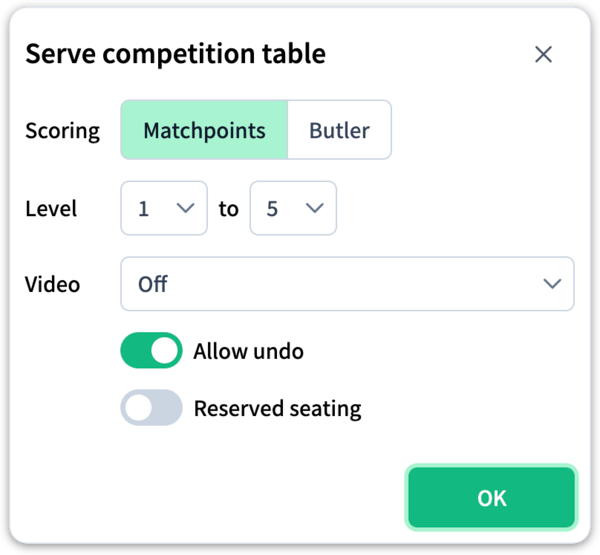
When you start a table yourself, you choose under Video straight away what spectators may do:
- Off — an ordinary table without video.
- On, but spectators are excluded — spectators can watch the play, but don't see video or hear speech.
- On, spectators see all, but cannot talk — spectators see and hear the players, but don't talk themselves.
- On, spectators see all and can talk — spectators take full part in the conversation.
In a teams match you switch video on in the same way when creating the match.
Joining
You can also join a video table that someone else has started: in the table overview you recognise it by the camera symbol in the table row.
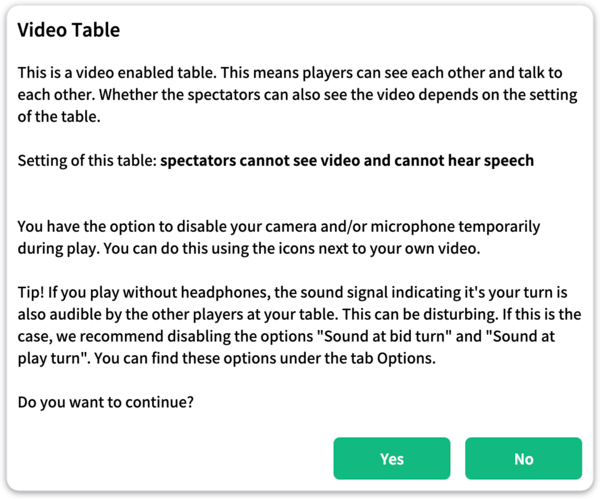
When you sit down, StepBridge first tells you that this table plays with video and what spectators may do there. So you never end up on camera unexpectedly.
The first time you play with video, your browser asks for permission to use your camera and microphone. Give that permission, or your camera and microphone stay off. Refused it by mistake? You can put that right in your browser's settings.
While playing
- You can switch your camera and microphone off for a while with the icons next to your own video picture.
- Playing without headphones? Then switch off the options Sound at bid turn and Sound at play turn (tab Options): otherwise your fellow players hear your turn signal too.
- Playing on a tablet? Then your picture moves with every movement of the tablet, which is restless for the others. In that case you may want to switch your camera off.
Alerting
At your own table or in a teams match, agree beforehand how you alert. You can alert your own calls and explain them by keyboard, as without video; then don't say the explanation out loud, because your partner would hear it. Or the four of you switch to alerting as at a real table: you say "alert" at your partner's calls, and the opponents ask you for the explanation. That way nobody hears an explanation of their own agreements. Read more about alerting.
Problems?
If the picture stutters or the sound drops out, try these in turn:
- Leave the table for a moment and come back.
- Log out and in again.
- Restart your computer.
No sound? Then also check that your speaker and microphone are on, and that the browser uses the right microphone.